
- STATUS: ACTIVE
- COMPATIBLE VERSION: 4.8
1. WHAT IS THE FORK MANAGER? 2. HOW DOES THE INTEGRATION WORK? 3. WHAT YOU CAN AND CANNOT DO 4. STEP-BY-STEP SETUP 5. DAY-TO-DAY WORKFLOW 6. RESERVATION INFORMATION IN REVO XEF 7. TROUBLESHOOTING 8. HOW TO DEACTIVATE THE INTEGRATION
1. WHAT IS THE FORK MANAGER?
The Fork Manager (TFM) is a reservation management software for restaurants that centralises on a single platform reservations from TheFork, TripAdvisor, Google, the MICHELIN Guide and those made directly through the restaurant's website or social media.
Find out more at theforkmanager.com.
2. HOW DOES THE INTEGRATION WORK?
The integration automatically connects TFM reservations to Revo XEF orders. The flow always goes in this direction:
The Fork Manager → Revo XEF → The Fork Manager
- When a reservation in TFM moves to "Seated" or "Arrived" status, an order is automatically created in Revo XEF at the corresponding table.
- When that order is paid or cancelled in Revo XEF, the consumption details are automatically sent to TFM and the reservation is closed.
IMPORTANT: Orders opened directly in Revo XEF are never sent to The Fork Manager. Reservations must always originate in TFM.
3. WHAT YOU CAN AND CANNOT DO
✅ What you CAN do
- Receive TFM reservations automatically in Revo XEF.
- Work on the order normally in Revo XEF: add products, manage the table, etc.
- Move an order to a different table in Revo XEF and close it correctly (the closure will still reach TFM).
- Pay or cancel the order in Revo XEF and have the reservation automatically closed in TFM.
❌ What you CANNOT do
-
Open manual orders in Revo XEF and have them reach TFM. Reservations must always originate in The Fork Manager.
-
Merge orders in Revo XEF. This action breaks the link with TFM and the reservation will not be able to close correctly in The Fork. Never perform this action on orders originating from TFM.
-
Modify data from Revo XEF (number of covers, notes, etc.) and have those changes reflected in TFM.
-
Close the reservation from TFM once the order already exists in Revo XEF. If this happens, the order in Revo must be closed manually.
❗ Reservations with multiple tables
If a reservation arrives with more than one table assigned, Revo XEF will open a single order at the first table received. The remaining tables will be free and are managed from TFM.
❗ Cancellations
If an order is cancelled in Revo XEF, the reservation is closed in TFM without a consumption receipt.
❗ Actions from the History
Refunds, assigning a customer with VAT number, or reopening orders from the Revo XEF History are not communicated to The Fork Manager.
4. STEP-BY-STEP SETUP
The setup is performed once per restaurant and, in most cases, is carried out by the support team or the reseller.
Before you start: Make sure you have access to the Revo XEF back office and the restaurant's The Fork Manager account.
Step 1 – Create the integration in Revo XEF and get the Token
1. Log in to the back office of Revo XEF.
2. Go to INTEGRATIONS.
3. Click + New, search for The Fork Manager and click + Add.
4. Save the integration without filling in any additional fields. Upon saving, the system will automatically generate a unique Token for this restaurant.
5. Go back into the integration (✏️ edit button). You will now see the generated Token. Select it in full and copy it.
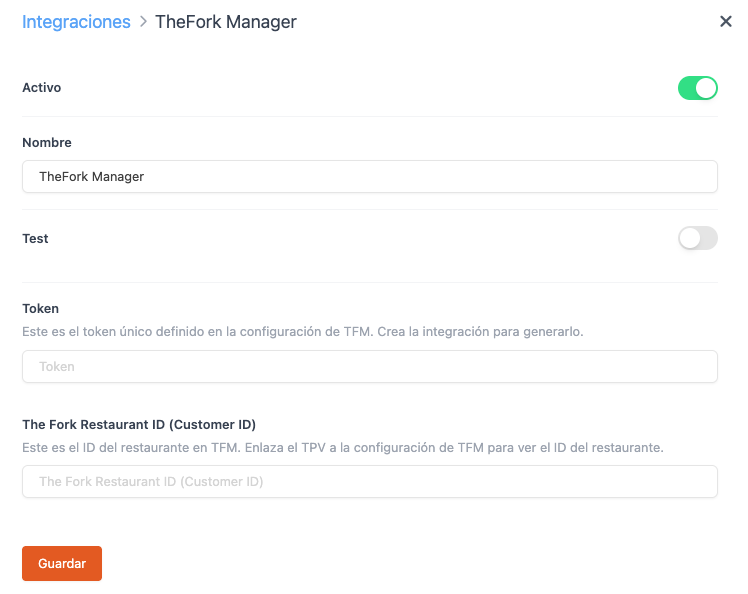
The Token is the unique identification code that tells The Fork Manager which Revo XEF account to send reservations to. Without it, the link cannot be established.
Step 2 – Link with The Fork Manager
1. Go to the integrations settings in The Fork Manager: manager.thefork.com/integration (login required).
2. Search for the POS "Cegid Revo XEF".
3. Paste the Token copied in the previous step into the corresponding field.
4. Click Next and then Confirm.
If the link is successful, the configuration popup will close automatically. At that point, The Fork Manager sends a confirmation to Revo XEF and the Restaurant ID (Customer ID) is registered in the integration. In the Activity Log (ActionLog) of the Revo XEF back office, you should see two confirmation lines.
The Restaurant ID is the unique identifier assigned by The Fork Manager to this restaurant. It is saved automatically and is used by Revo XEF to verify that the reservations it receives belong to this restaurant. You do not need to copy or save it manually.
Step 3 – Sync table names
Table names must match exactly between The Fork Manager and Revo XEF for reservations to be assigned correctly. This configuration is done manually.
To make this easier:
In the XEF back office, go to INTEGRATIONS, click on the The Fork Manager integration and select Export tables. You will get a list of all table names from Revo XEF to configure in TFM.
IMPORTANT: If a table name does not match exactly (including upper/lowercase and spaces), the reservation cannot be created in Revo XEF and an error will appear in the Activity Log.
5. DAY-TO-DAY WORKFLOW
1. A reservation is created in The Fork Manager (immediately or for a future date).
2. When the guest arrives at the restaurant, the reservation status is changed to "Arrived" or "Seated" in TFM.
3. The reservation automatically creates an order in Revo XEF at the corresponding table, with a total of €0 and a "pending note" status.
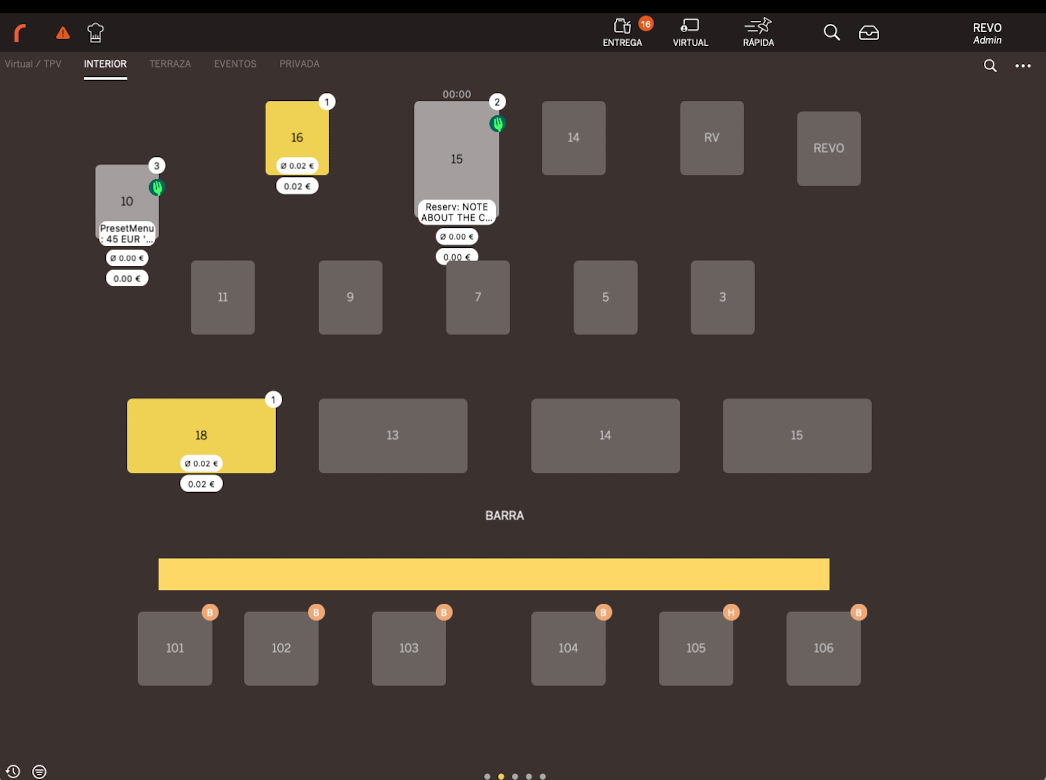
4. Staff work normally in Revo XEF: add products, manage the table, etc.
The order arrives with no products. Staff must add them manually, as The Fork Manager does not send dish details.
5. When the order is paid or cancelled in Revo XEF, the closure is automatically sent to The Fork Manager.
6. RESERVATION INFORMATION IN REVO XEF
When a TFM reservation is received, Revo XEF automatically records the following information:
Order notes
A summary is generated with the relevant reservation details:
- Reserved menu or promotion (type and name of the offer).
- Yums amount if the reservation includes a TFM loyalty discount.
- Guest notes about the reservation.
- Internal restaurant notes.
Example: "PresetMenu: 99 EUR 'quatro mani cena' | Yums: 1000 | Rest: CEO of Acme, handle with care | Reserv: I need a highchair"
Guest
The first name, last name and allergies recognised by Revo XEF are saved. Unrecognised allergies and dietary restrictions (e.g. "Gluten Free", "Dairy Free") are saved in the guest notes.
Covers
The number of covers indicated in the TFM reservation is recorded.
Prepayment
If the reservation includes a prepayment, it is automatically recorded as an invoice with "The Fork" as the payment method.
Link with TFM
The order is internally linked to The Fork reservation identifier so that the closure is sent correctly.
7. TROUBLESHOOTING
If you notice any issues, always check the Activity Log (ActionLog) in the Revo XEF back office. Messages related to this integration always start with "TheFork Manager:" or "TheFork Manager Error:".
If you cannot find information in the ActionLog, contact Revo support for a more detailed review.
Errors during linking (Step 2)
| Error message | What it means and what to do |
|---|---|
| Missing credentials | Data is missing from the request. Repeat the process from Step 2. |
| Invalid credentials | Incorrect credentials. Check that the Token is correct. |
| Invalid unique-instance-token | The Token pasted is not valid or does not correspond to this integration. Copy the Token again from Revo XEF. |
| Account is inactive | The Revo XEF account is deactivated. Activate it before continuing. |
| Integration not found | The Fork Manager integration does not exist in the back office. Recreate it from Step 1. |
Errors when receiving a reservation
| Error message | What it means and what to do |
|---|---|
| Missing / Invalid credentials | Authentication issue between TFM and Revo. Contact support. |
| Invalid Customer ID | The Restaurant ID does not match the registered one. Repeat the linking from Step 2. |
| Account is inactive | The Revo XEF account is not active. Activate it. |
| Integration not found | The integration is not active in the back office. Check it. |
| Reservation status is not 'RECORDED' | TFM sent the reservation with an unexpected status. No action needed; the reservation should not be created. |
| The orderId already exists | TFM attempted to create a reservation that already exists in Revo. No action needed. |
| Tables not found in the payload | The TFM reservation does not include a table name. Contact TFM. |
| Table not found in POS | The table name does not exist in the Revo XEF table layout. Check that names match exactly (Step 3). |
| Table is already in use | The table already has an open order. Close it before the next reservation arrives. |
| Can't create the order | The order could not be created due to an unexpected error. Contact Revo support. |
Errors when closing an order
| Error message | What it means and what to do |
|---|---|
| Failed to send close request | Revo XEF could not send the closure to TFM. The order is closed in Revo but may not be in TFM. Close it manually in TFM if needed and contact support. |
If the flow is correct and the table names match between both systems, none of these errors should occur.
8. HOW TO DEACTIVATE THE INTEGRATION
IMPORTANT: Before deactivating or deleting the integration in Revo XEF, coordinate with The Fork Manager to stop their sends. Otherwise, reservations will keep arriving but will generate errors in the Activity Log.
Temporarily deactivate
1. Go to INTEGRATIONS in the Revo XEF back office.
2. Deactivate The Fork Manager integration.
3. Notify The Fork Manager to stop sending reservations.
Permanently delete
1. Go to INTEGRATIONS in the Revo XEF back office.
2. Delete The Fork Manager integration.
3. Notify The Fork Manager to stop sending reservations.