
- STATUS: ACTIVE
- VERSION: REVO XEF ADVANCE
1. WHAT IS WIPAY? 2. TERMINALS AND THEIR FUNCTIONS 3. CONFIGURATION IN REVO 4. PAIRING THE TERMINAL IN THE REVO XEF APP ADVANCE
1. WHAT IS WIPAY?
Wipay is an in-person payment solution that allows businesses to accept card payments quickly, securely, and easily using payment terminals.
Through its physical devices, merchants can process card and contactless payments, offering a streamlined checkout experience for both the business and the customer. The system is designed to integrate easily with the point of sale, facilitating the management of daily transactions.
Wipay stands out for offering a secure and regulated payment infrastructure, ensuring the correct management and processing of operations carried out at the establishment.
2. TERMINALS AND THEIR FUNCTIONS
- QPay POS Q2000: For integrated payments with Revo XEF / Integrated PIN PAD.
Important: For payments and refunds to work correctly in the Revo XEF app, ensure that in the Wipay terminal, under Configuration → Printer → Receipt Behavior, the option “Print on paper” or “Do nothing” is selected; if “Preview” or “Preview and print” is chosen, transactions will not process correctly until “Finish” is pressed on the summary screen, which may cause issues in refunds involving more than one payment.
3. CONFIGURATION IN REVO
1. Access the REVO back-office.
2. Click on Integrations.
3. From the Add button, search for Dojo and click on Add.
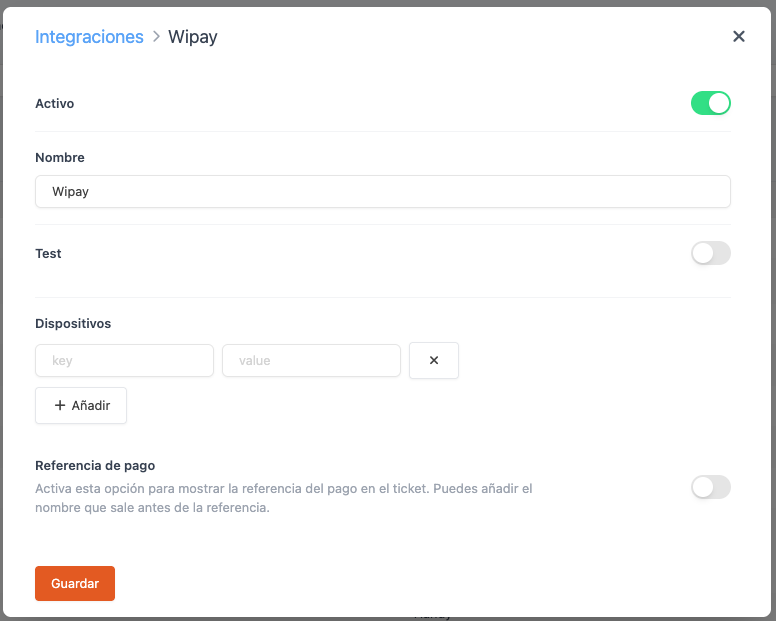
4. Fill in the following information:
-
Active: Enabled.
-
Name: A descriptive name for the integration.
-
Test: Disabled.
-
Devices: Add an identifying name for the device (key) and the terminal's IP address (value).
-
Payment reference: Enable this option to show the payment reference on the receipt. You can add the name that appears before the reference.
5. Click Save to confirm the changes.
Once these steps are completed, the Wipay integration is now configured.
4. PAIRING THE TERMINAL IN THE REVO XEF APP ADVANCE
At this point:
1. Open the Revo XEF application on our device.
2. Tap on the REVO r at the top left of the screen.
3. Go to Integrations.
4. Tap on Wipay.
5. Tap on the name of the device previously configured during the creation of the integration.
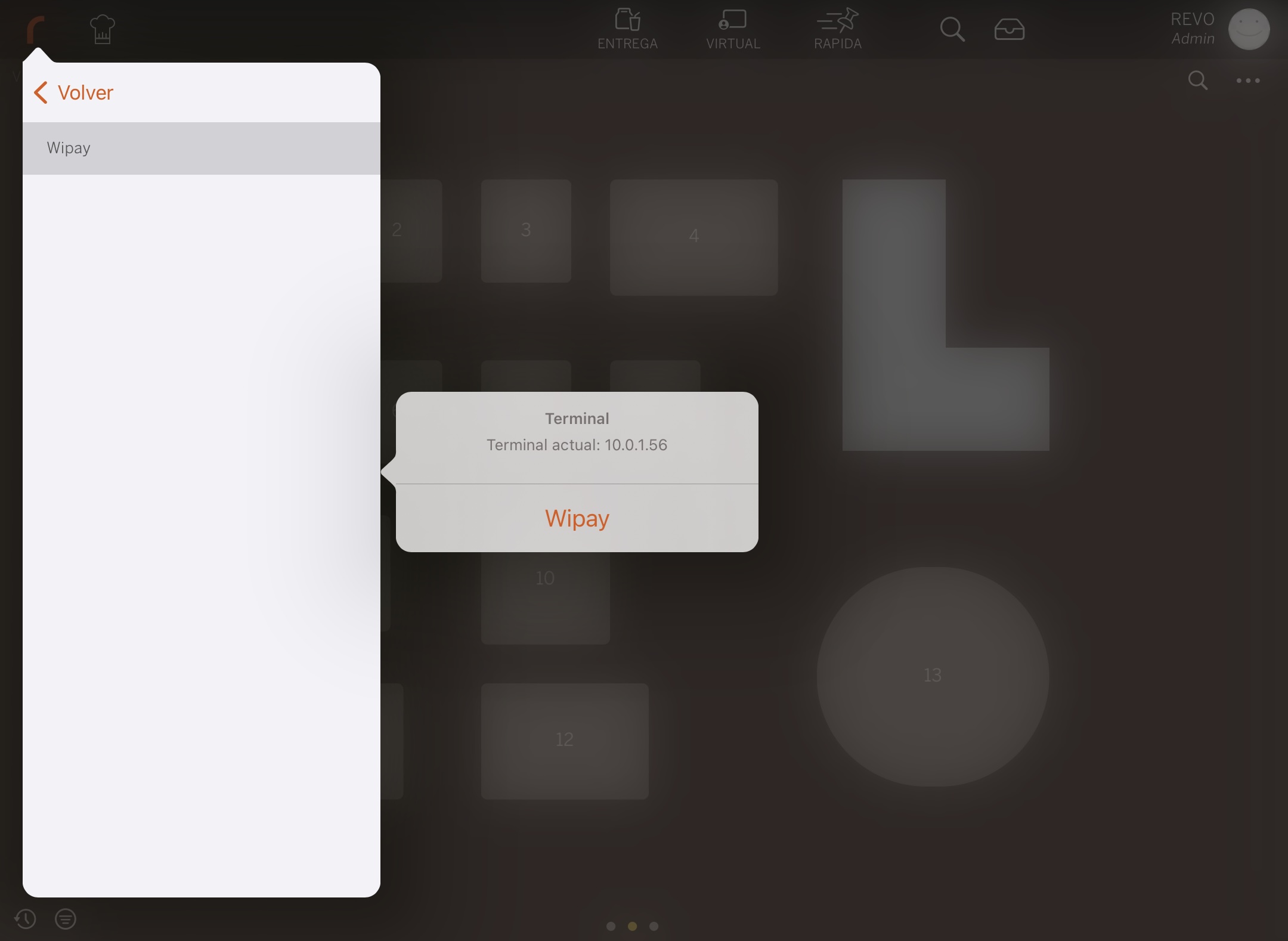
From this moment on, when placing an order in Revo XEF and selecting card payment, the Wipay payment application will open automatically. Everything is ready for checkout.
Therefore, when we perform a CARD payment, it will be executed using the Wipay pinpad and this payment gateway.