- WHAT IS FREEDOM PAY?
- COMPATIBLE TERMINAL MODELS
- TECHNICAL SUPPORT
- PINPAD CONFIGURATION
- CONFIGURATION IN REVO XEF
1. WHAT IS FREEDOM PAY?
Freedom Pay is a payment platform headquartered in United States, offering a unique payment solution worldwide. In addition to being an operational platform for several PMS (Property Management Systems), it offers a payment gateway for WEB-based solutions.
2. COMPATIBLE TERMINAL MODELS
The PINPAD type terminals selected for integration with Revo XEF are:
- INGENICO MOVE 5000
- INGENICO LINK 2500
Both models are configured in UPP mode (Unified Point of Interaction Protocol) for communication with Revo XEF.
3. TECHNICAL SUPPORT
Communication with the Freedom Pay support team will be done through the following email addresses:
- Production Support: TechSupport@FreedomPay.com
4. PINPAD CONFIGURATION
Below are the standard commands to access the PINPAD configuration options from the home screen:
NOTE: To configure the PINPAD, it cannot be linked to any Revo XEF iPad. To return to the PINPAD home screen, press the red button (cancel).
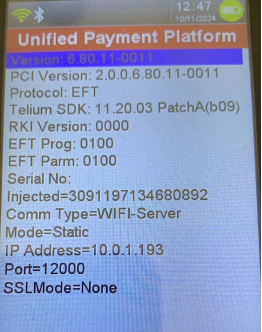
CHECK PINPAD STATUS
- Press the combination "0000" on the PINPAD.
- A screen will be displayed where you can check:
- The IP address of the device.
ACCESS THE CONFIGURATION MENU
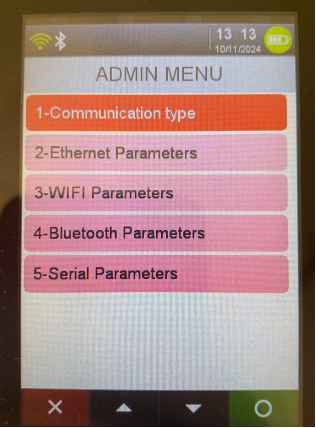
- Press the combination "0001" on the PINPAD.
- A screen will be displayed where you can configure the WiFi connection IP address (option 3).
RESTART THE PINPAD
- Press the yellow + "#" key combination for 2 seconds.
5. CONFIGURATION IN REVO XEF
This section describes the configuration of the Freedom Pay integration in both the Revo XEF back-office and the Revo XEF app.
5.1. CONFIGURATION IN BACK-OFFICE
To add the Freedom Pay integration in the Revo XEF back-office, follow these steps:
- Go to Integrations → Integrations.
- Click the Add button.
- Find the item named FreedomPay and click Add.
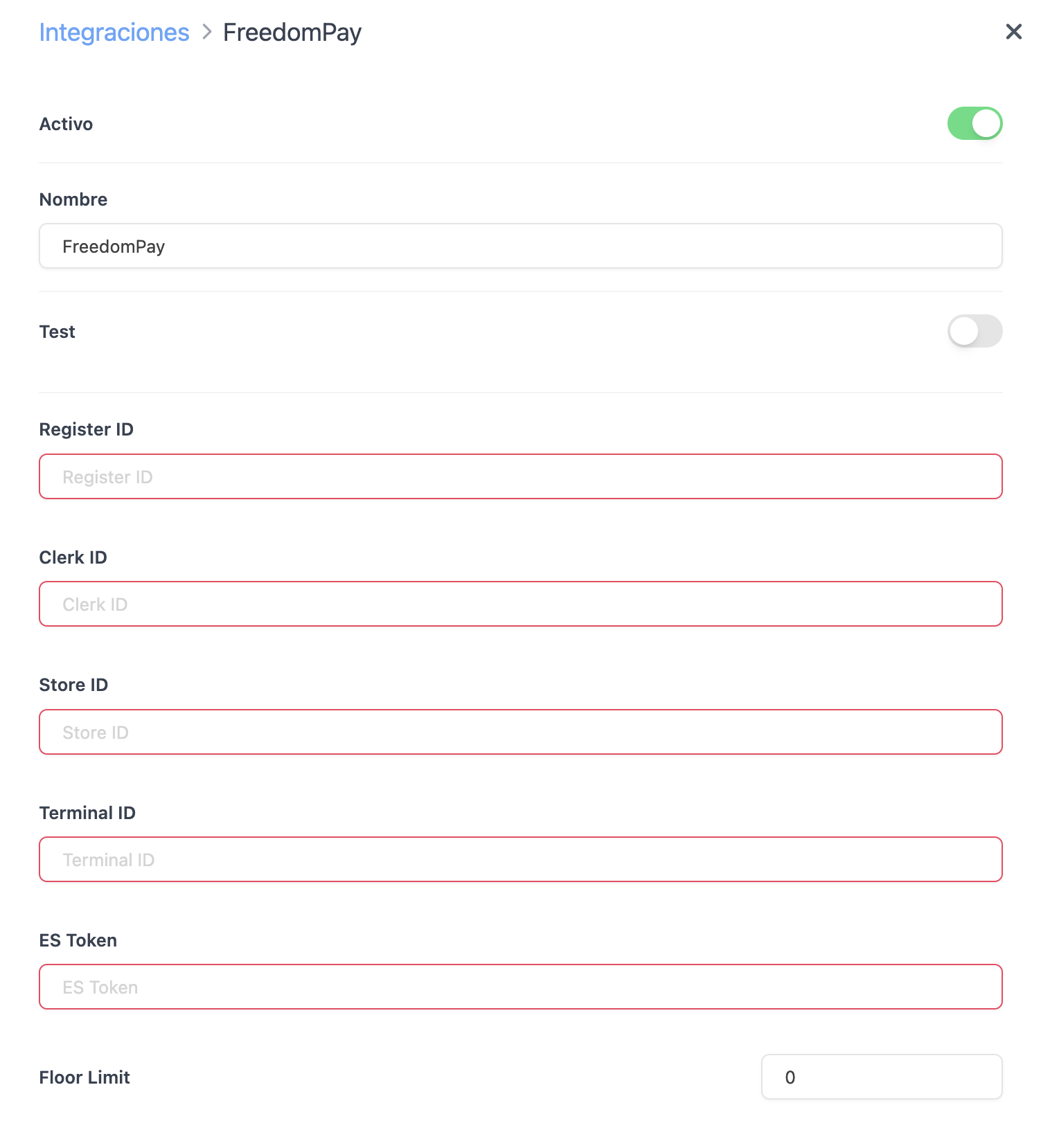
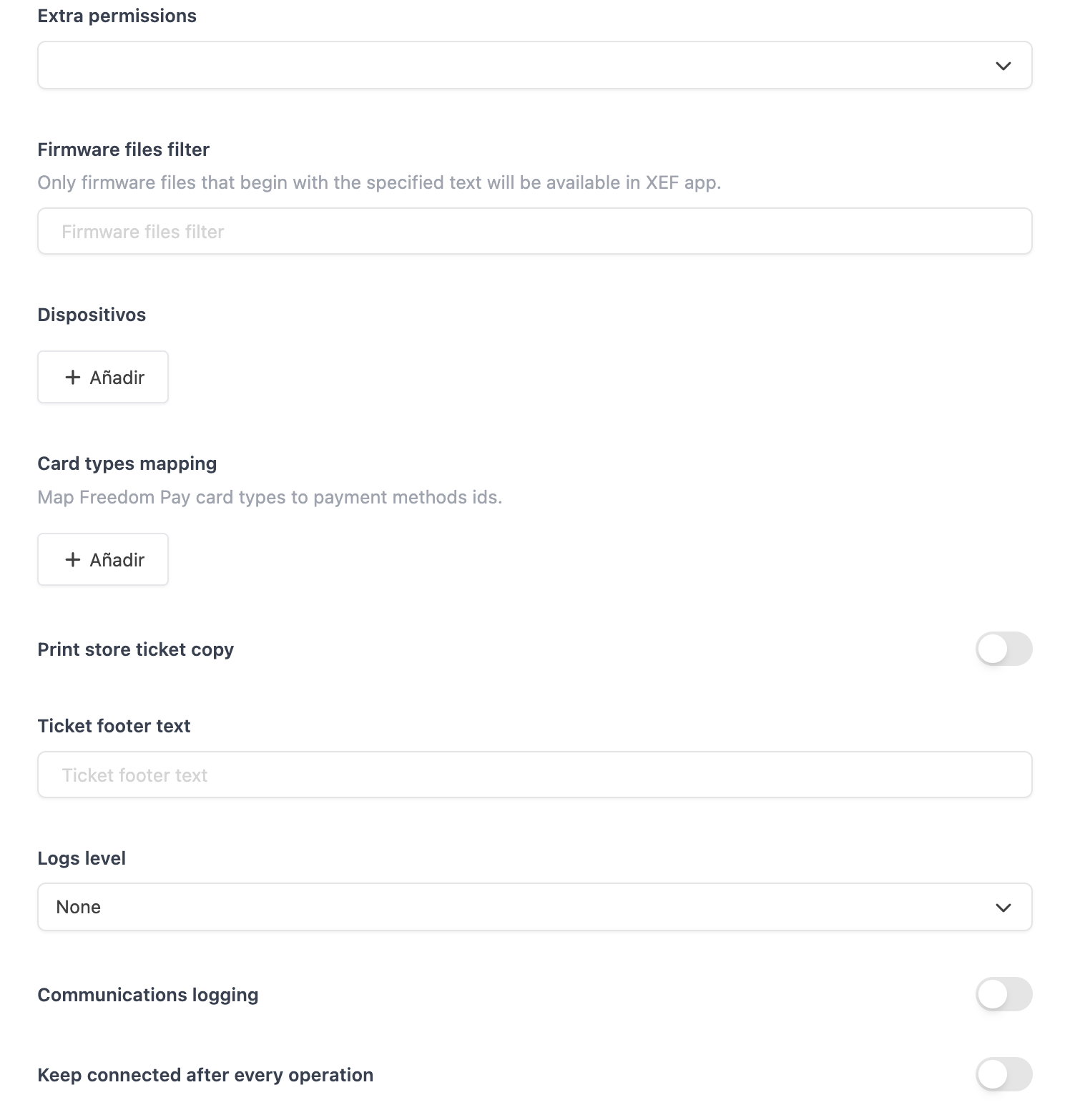

Once the integration is added, the configuration screen will be displayed where you must enter the following parameters:
-
Activate: Activates the integration.
-
Name: Free text to identify the integration. Default value: "FreedomPay".
-
Test: Deactivates test mode for production environment.
-
Register ID: Merchant identifier in Freedom Pay. Must be a numeric value.
-
Clerck ID: Merchant identifier in Freedom Pay. Must be a numeric value.
-
Store ID: Identifier provided by Freedom Pay.
-
Terminal ID: Identifier provided by Freedom Pay.
-
ES Token: Access token, provided by Freedom Pay.
-
Floor Limit: Maximum amount allowed for off-line operations. If the value is 0, no operation will be authorized in off-line PINPAD mode. Default value: 0.
-
Extra Permissions: Revo XEF app profiles authorized for firmware updates and to query off-line operations.
-
Firmware files filter: Prefix to filter firmware files. Default value for Spain: "SP_".
-
Devices: Name and IP of configured devices.
-
Card types mapping: Mapping of Freedom Pay card code with Revo XEF payment methods.
-
Print store ticket copy: Print ticket for the point of sale.
-
Ticket footer text: Text to put at the bottom of the ticket.
-
Logs level: Error tracing level. Internal Revo use. Default value: "Error".
-
Communications logging: Activate communications log. Default value: NO.
-
Keep connected: Keep the PINPAD connected after each operation.
-
Payment reference: Prefix for the payment reference number.
IMPORTANT: It is necessary to restart the Revo XEF app after adding the Freedom Pay integration for it to initialize correctly.
5.2. CONFIGURATION IN THE APP
The configuration in the Revo XEF app consists of selecting the PINPAD device with which the application will interact.
- Go to the menu r → Integrations.
- Select the "FreedomPay" integration (name configured in the back-office).
- Select the PINPAD you want to connect from the iPad or iPhone.
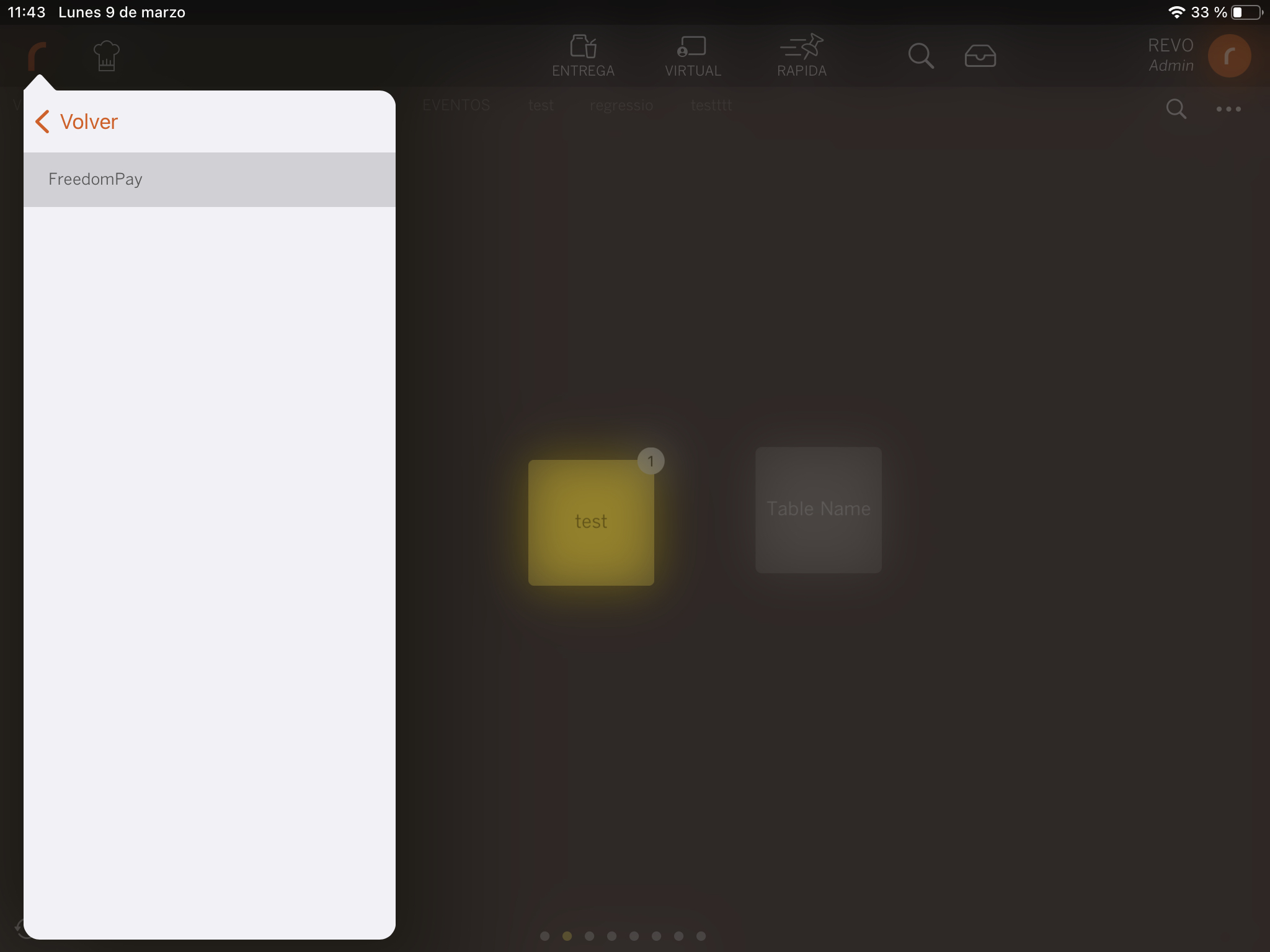
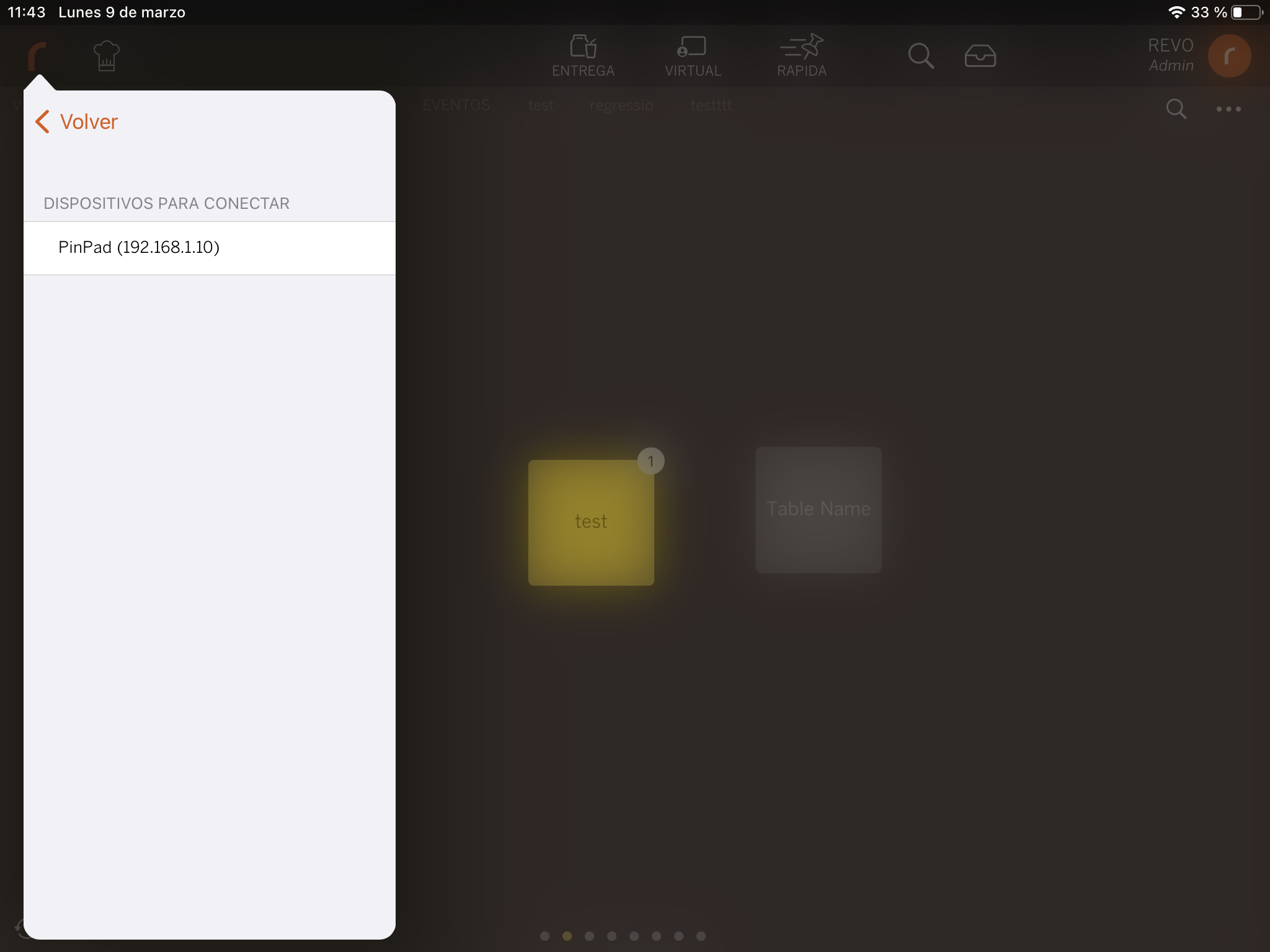
NOTE: The PINPADs shown in this list have been previously defined in the integration configuration in the Revo XEF back-office. If the Freedom Pay integration has not been defined in the back-office, the "Integrations" menu option will not be displayed.
Once the connection process between the iPad or iPhone and the PINPAD is completed, the connection status screen will be displayed.
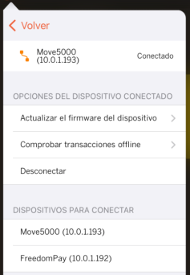
At this point, the PINPAD is connected and ready to be used for common payment and refund operations from the Revo XEF app.